Mimic app · Setup guide
Your dashboard, one tap away.
Add Mimic to your home screen or computer. Open your accounts, P&L, journal and payouts in a dedicated app window, using your existing Mimic sign-in.
Open your dashboardSafari
iPhone or iPad
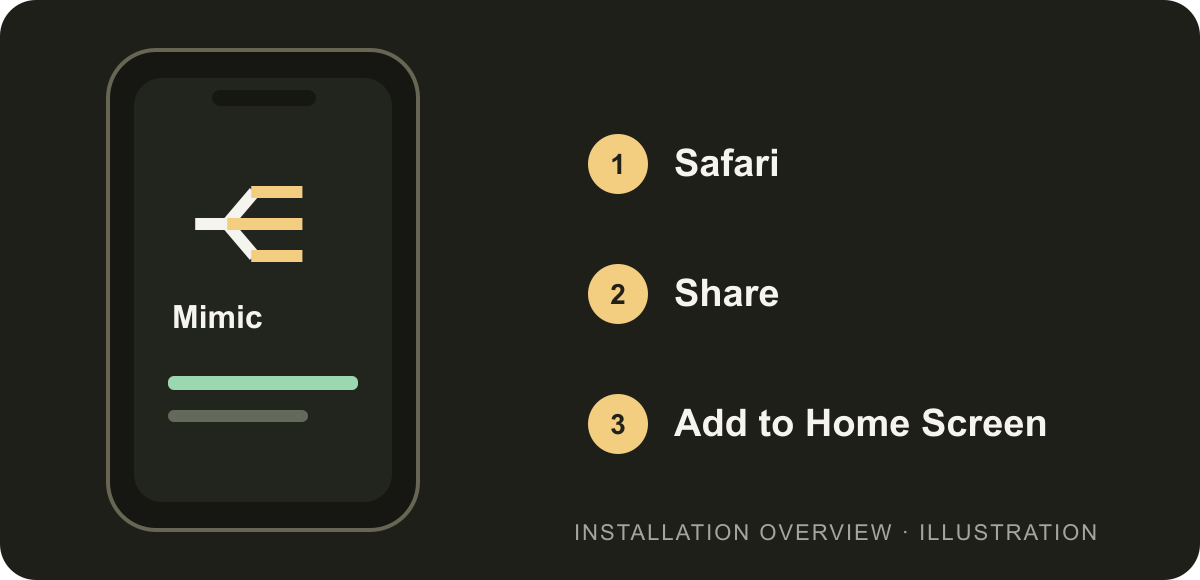
- Open your Mimic dashboard in Safari and sign in.
- Choose Share from Safari’s toolbar or page menu, then Add to Home Screen.
- Enable Open as Web App if shown. Tap Add and open Mimic from its new icon.
If Add to Home Screen is missing, check Edit Actions in the share menu.
Apple’s Safari installation instructionsChrome
Android
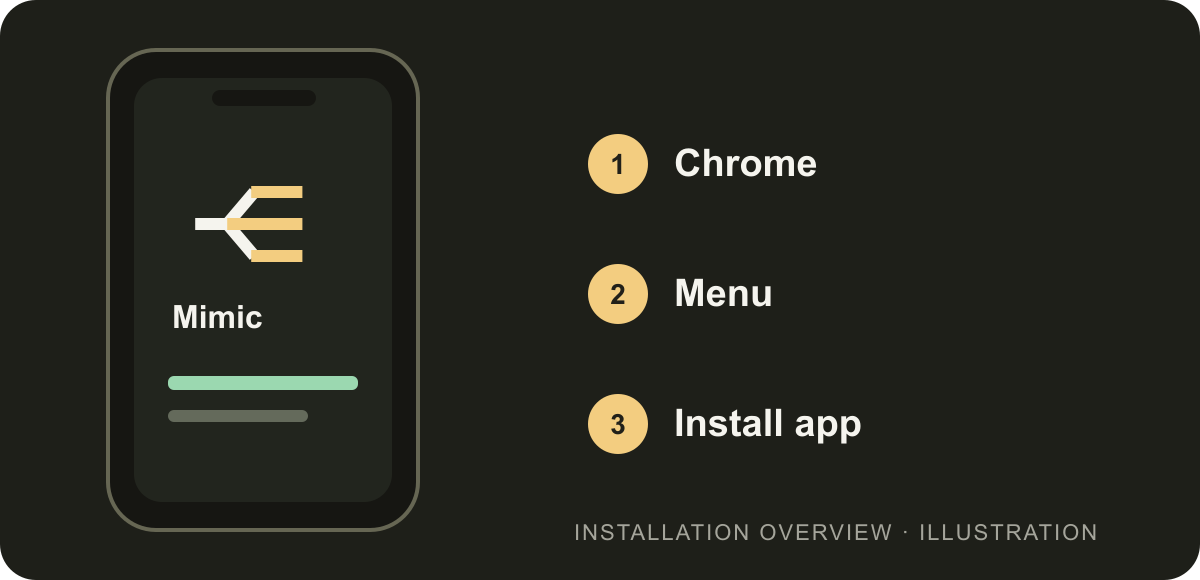
- Open your dashboard in Chrome and sign in.
- Open More → Install and create shortcut → Install. Depending on your version, the action may say Install app or Add to Home screen.
- Confirm installation, then launch Mimic from your app launcher or home screen.
Use Chrome directly if a link opened inside an email or social app.
Google’s Android installation instructionsChrome
Mac, Windows or Linux
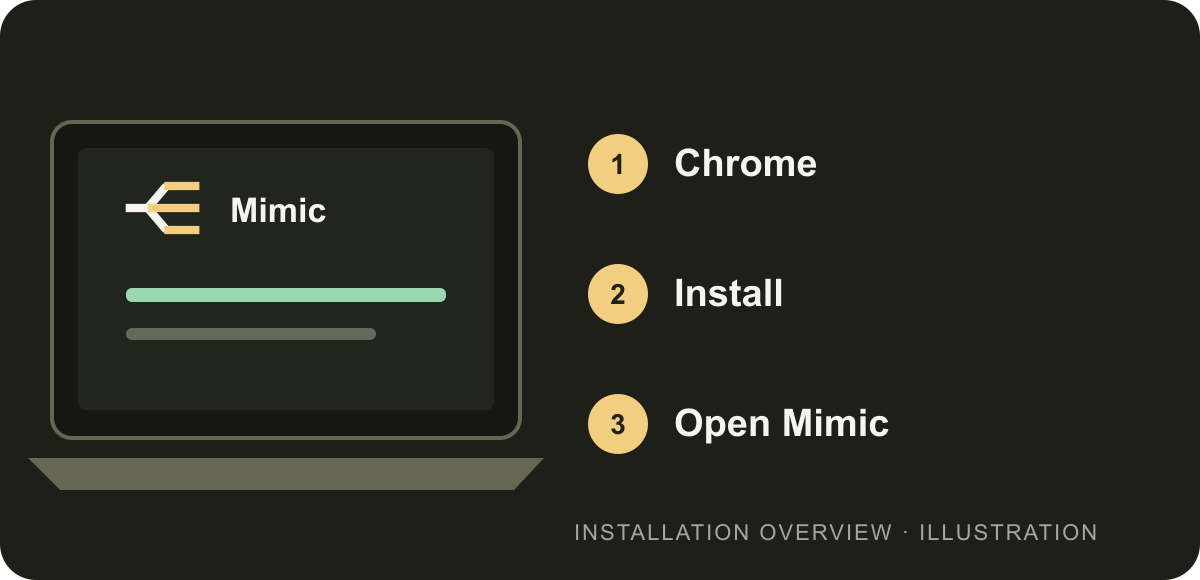
- Open your dashboard in Chrome.
- Select the address-bar Install icon, or More → Cast, save, and share → Install page as app.
- Confirm and open Mimic from your computer’s app launcher.
Installing the dashboard is separate from installing the desktop copier extension.
Google’s desktop installation instructionsOnce you’re installed
Use your usual sign-in
If the new app window asks you to sign in, use the same Mimic account. Your phone does not need to activate a copier browser.
Check the last update
The header’s sync details show when the desktop last sent account data. Fresh balances and positions require internet and a connected desktop copier.
Refresh with a pull
In the installed app, pull down from the top of your dashboard and release to request the latest available records.
Join your community
Connect Discord in Profile to see your community connection and current roles. You can manage device alert permissions there too.
Instructions reviewed November 18, 2026. Installation labels can change with browser updates.